When a customer purchases a large quantity of products and wishes to send order confirmation emails to designated recipients in bulk, the merchant can create a batch order in the backend, allowing all order confirmation emails to be sent in one go. Please note that this feature is available only upon request.
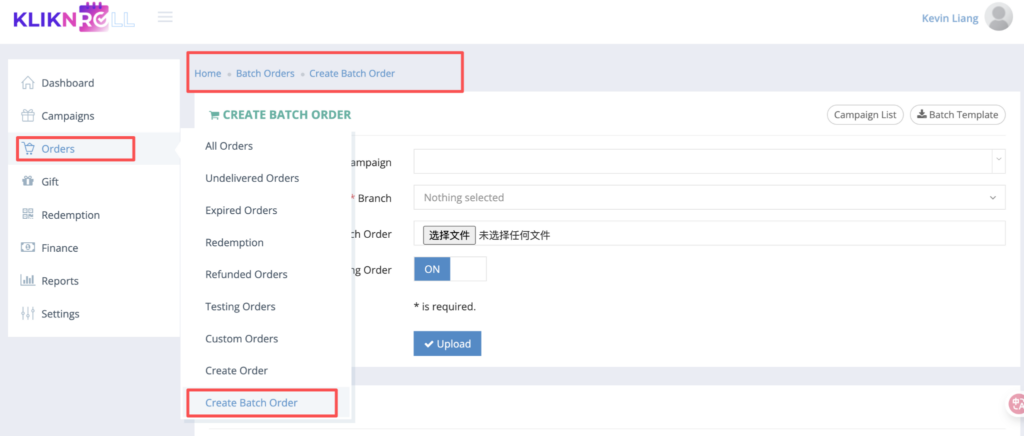
Step 1: Navigate to “Orders” and select “Create Batch Order”.
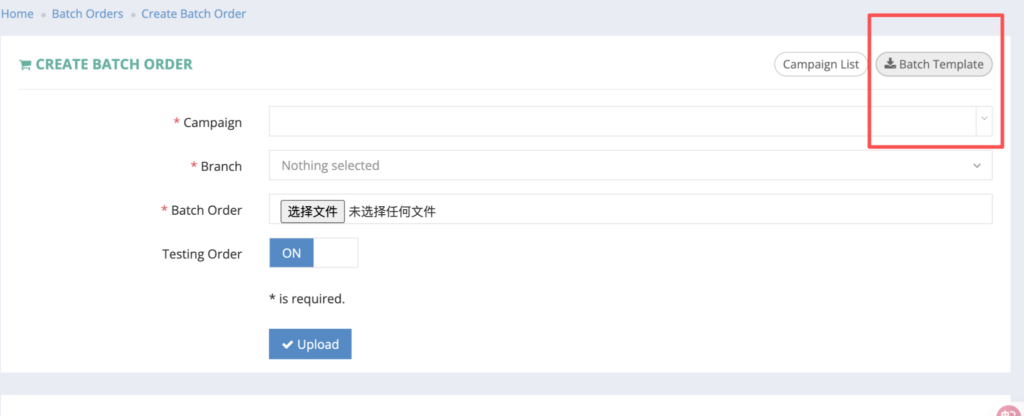
Step 2: Click “Batch Template” located in the top right corner to download the batch order template in CSV format
Step 3: Please fill in the downloaded batch order template
- Invoice ID: Please create a unique Invoice ID. We recommend using the format YYMMDD followed by a running number. Example: 2511240001, 2511240002, 2511240003. Invoice IDs must be unique and cannot be reused. If a duplicate Invoice ID is entered, the confirmation email will not be sent.
- Payment Method: Enter the payment method used (free text), e.g. credit card, bank transfer, e-wallet, etc.
- SKU of the Product Child: Displays the SKU of the selected product variant.
- Quantity: Displays the quantity ordered.
- Language: The preferred language for the confirmation email.
- Name (Recipient): Enter the first name and last name of the recipient.
- Email (Recipient): Enter the email address of the recipient. This is required for sending the confirmation email.
- Phone Number (Recipient): Enter the recipient’s contact phone number.
- Booking Date: Shows the booking date for this order
- Member ID (Optional): Enter the member’s ID, if applicable. Leave blank if not provided.
- Member Type (Optional): Enter the membership type, if applicable (e.g. Gold, Silver, VIP).
- Remarks (Optional): Displays additional notes or system-generated remarks
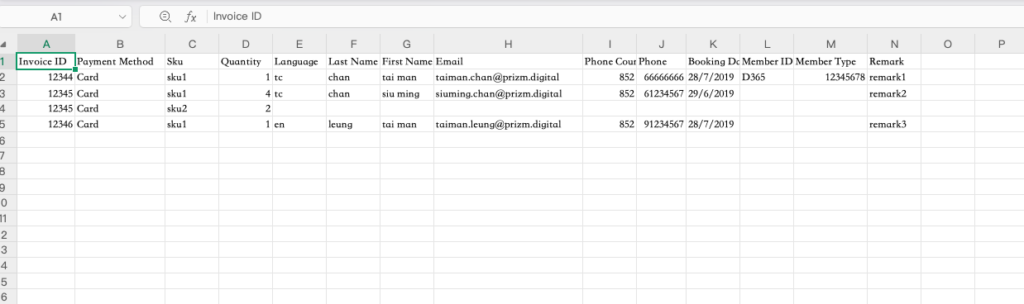
Step 4: Return to the backend and select the following details, then click “Upload”.
- Campaign: Please select the campaign for which the batch order will be created. You may search using the Campaign Name.
- Branch: The branch eligible to redeem these orders.
- Batch Order: Upload the CSV file prepared in Step 3.
- Testing Order: Turn this ON if you want to place test orders only.
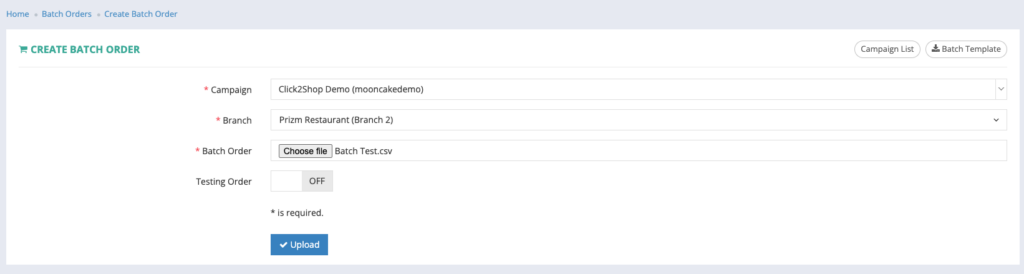
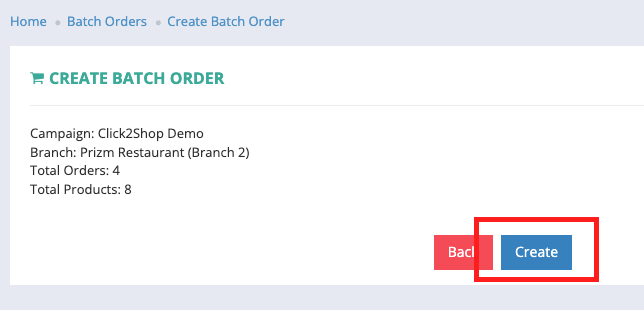
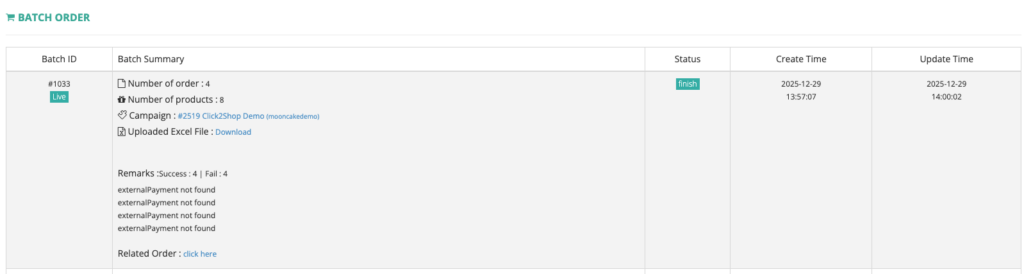
Step 5: Once uploaded, click “Create” to generate your batch order. It will then appear in a dashboard format.