
The discount settings for Online Booking System allows users to configure the details of their discount codes.
⚠️: This setting is not available for the Dine-In 1.0 and Dine-In 1.5 Modules.
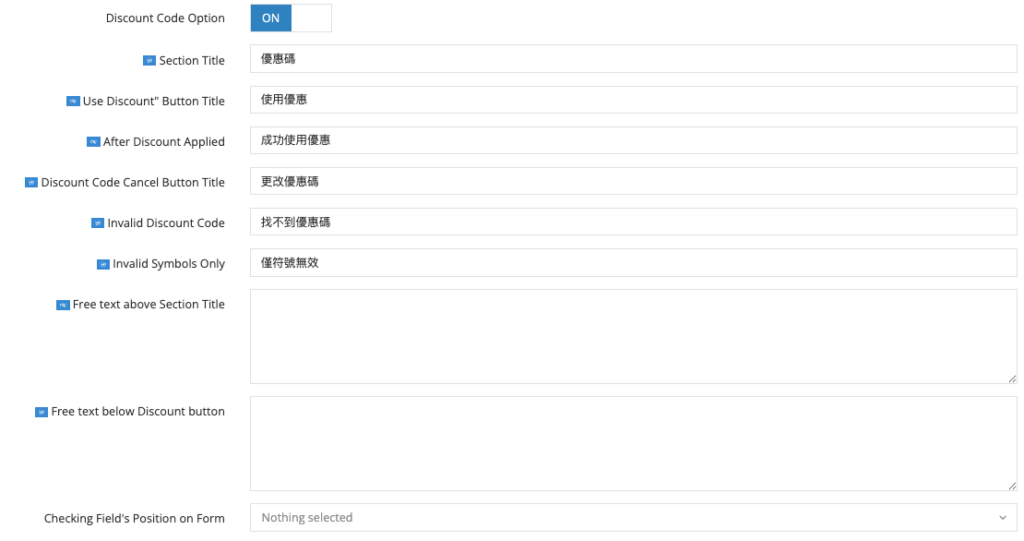
Step 1: Toggle the Discount Code Option to “ON” to activate the discount code function.

Step 2: Insert the discount code information.
- Section Title: Title of the discount code.
- User Discount Button Title: Button text displayed for applying discount code.
- After Discount Applied: Text displayed after applying a discount code.
- Discount Code Cancel Button: Text displayed after cancelling a discount code.
- Invalid Discount Code: Text displayed after applying an invalid discount code.
- Invalid Symbols Only: Restrict the symbols that can be used for a discount code.
- Free text above Section Title: Text positioned above the discount code section.
- Free text below Discount button: Text positioned below the discount code button.
- Checking Field’s Position on Form: The format of the discount code checking field in form.
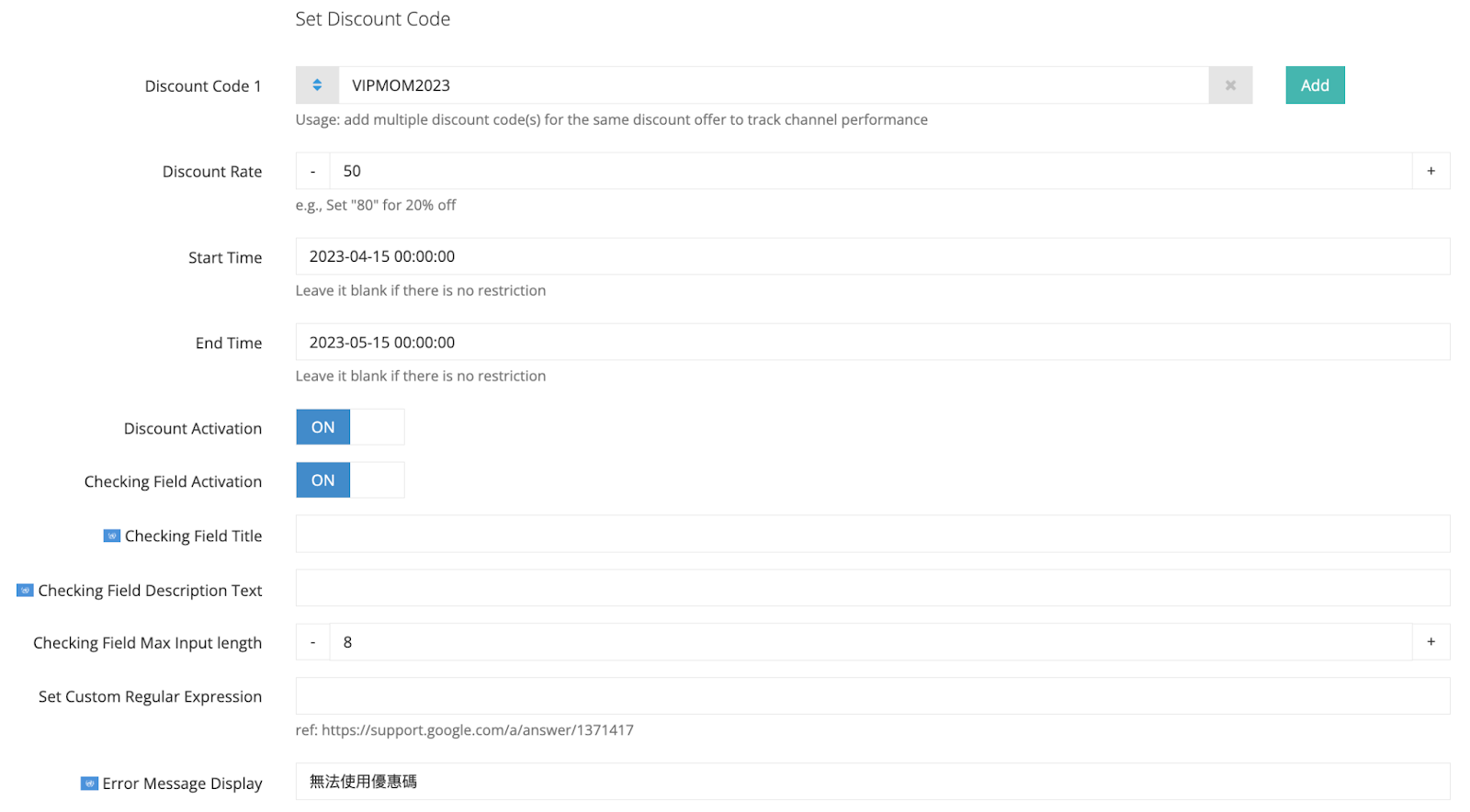
Step 3: Set up the discount code.
- Discount Code: The code of the discount.
- Discount Rate: Discount amount of the discount code. Set “80” for 20% off, “70” for 30% off, similarly for other discount amounts.
- Start Time: The start time of the discount code availability. Leave it blank if there is no restriction
- End Time: The end time of the discount code availability. Leave it blank if there is no restriction.
- Discount Field Activation: Toggle the status to “ON” to activate the discount code.
- Checking Field Activation: Toggle the status to “ON” to activate the discount code checking field.
- Checking Field Description Text: The description of the discount code checking field.
- Checking Field Max Input Length: The maximum input length of the checking field.
- Set Custom Regular Expression: A custom regular expression, often referred to as a regex or regexp, is a sequence of characters that defines a search pattern. It is a powerful tool used in programming and text processing to find, match, and manipulate strings based on specific patterns.
- Error Message Display: The text that appears when an incorrect discount code is entered.
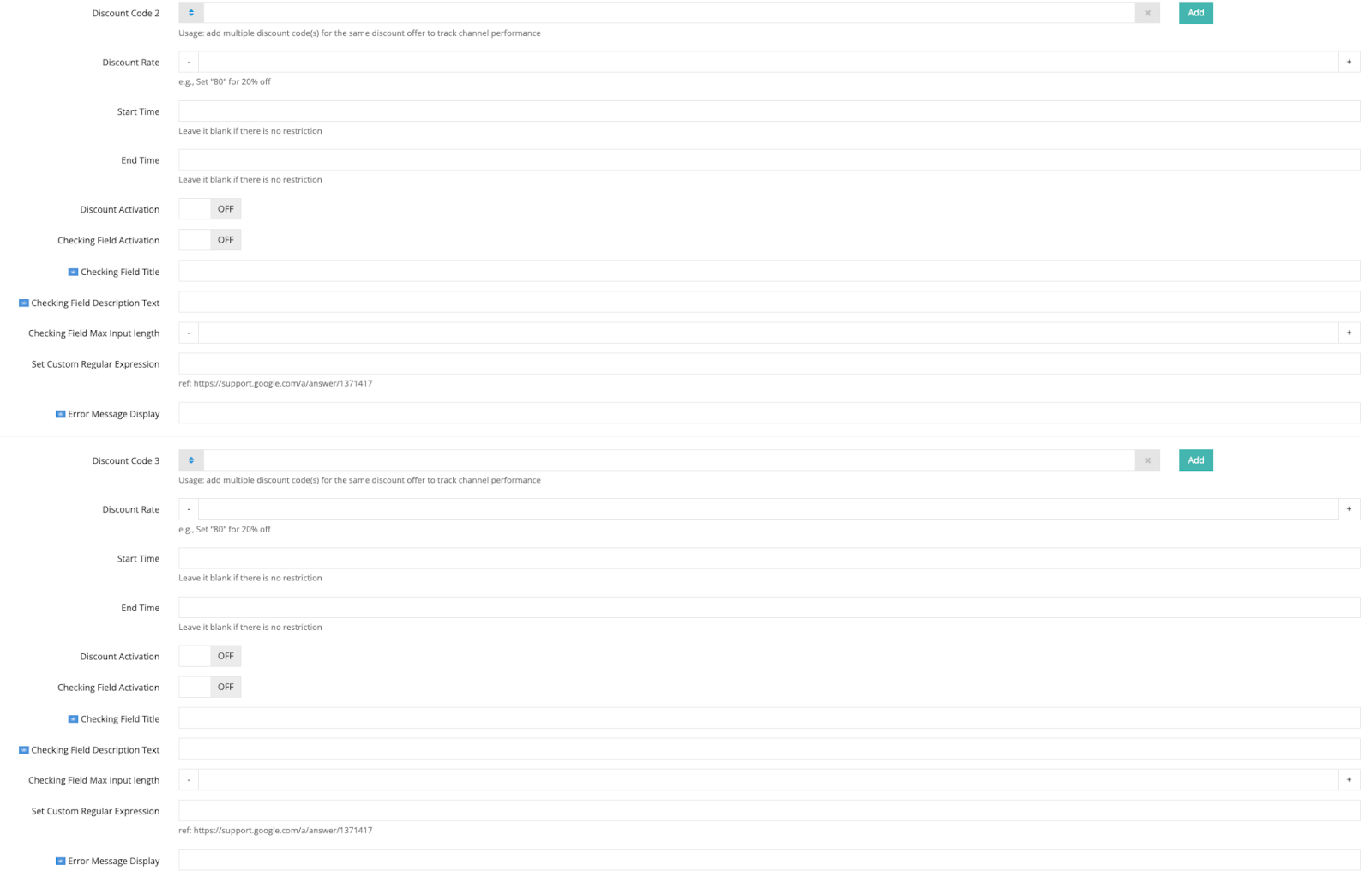
Step 4: If you have multiple discount codes, you can configure them here. You can add up to a maximum of three discounts. If you don’t have any, please proceed to Step 5.
Step 5: Proceed to edit the remaining languages, if applicable.

Step 6: Click on the “Save” button to save your changes.
